TradingView's mobile app is a powerhouse for traders on the go, offering sophisticated charting tools and analysis features right in your pocket. One of the most valuable features that many traders overlook is the ability to switch between different custom layouts.
In this guide, I'll walk you through the simple three-step process to switch layouts on TradingView mobile, so you can instantly access your pre-configured analysis setups whenever you need them.
Step-by-Step: How to Switch Layouts on TradingView Mobile
Step 1: Access the Menu by Clicking the Three-Dot Icon
The first step is simple but crucial. Look at the bottom right corner of your TradingView mobile chart screen. You'll see a toolbar with various icons. Among these, you'll find the three-dot menu icon (⋯), also known as the "More" menu.
Tap on the three-dot icon to open the action menu. This menu contains all the additional features and options that aren't immediately visible on your main chart interface.
Pro Tip: The three-dot menu is contextual, so it may also appear in different locations depending on your current view. If you're in the chart tab, it's typically in the bottom toolbar. Make sure you're tapping the correct menu icon to access layout options.
Step 2: Click on "Open"
Once you've tapped the three-dot menu, a dropdown menu will appear with several options. Look for the "Open" option in this menu. This option gives you access to your saved layouts and allows you to load any of your pre-configured chart setups.
Tap on "Open" to proceed to the layout selection screen.
What You'll See: The menu typically includes options like "Layout setup," "Manage (what you save your layout as)," "New," "Save," and "Open." Make sure you're selecting "Open" and not one of the other options, as they serve different purposes.
Step 3: Select Your Desired Layout
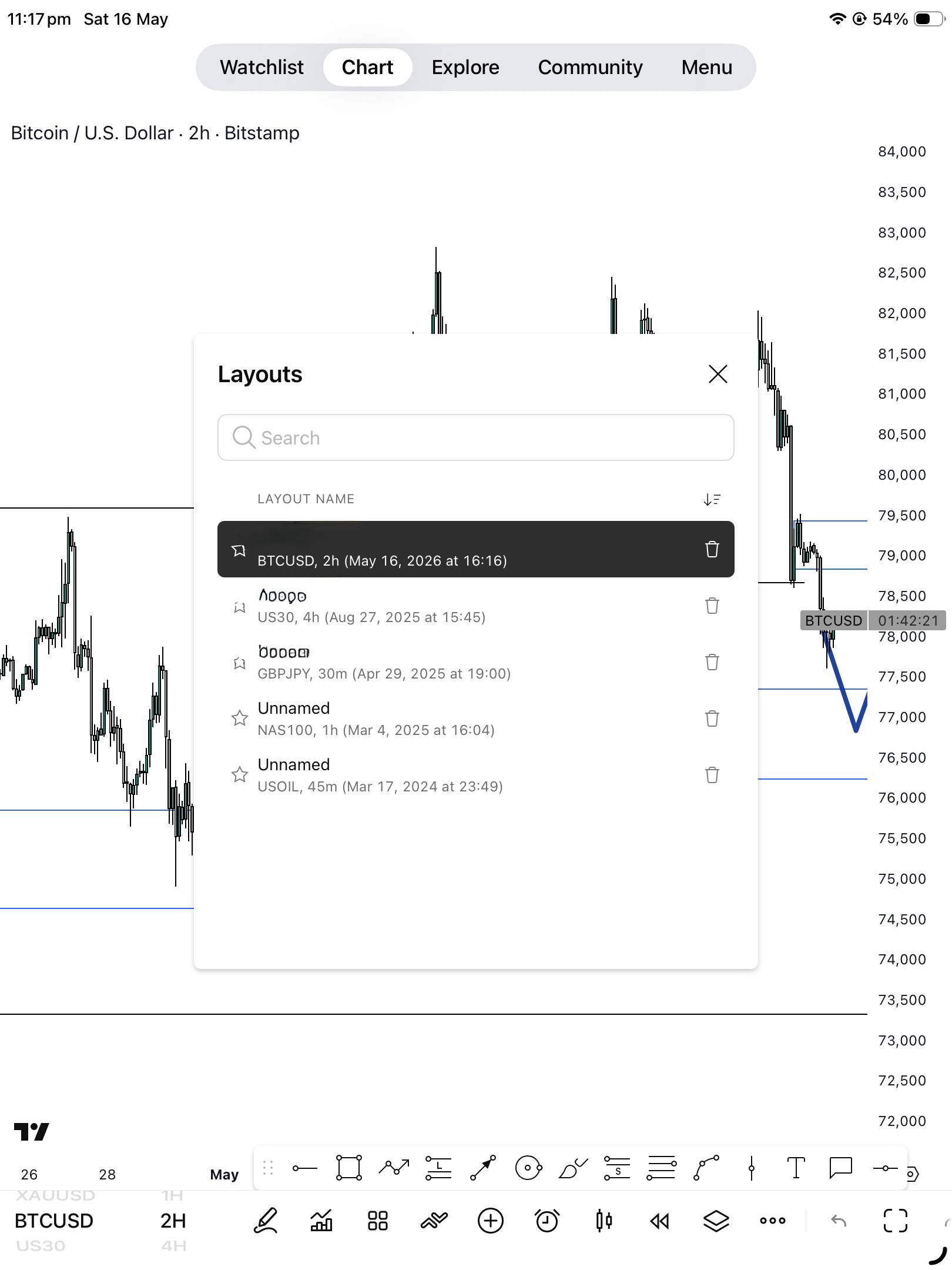
After clicking "Open," you'll be presented with a list of all your saved layouts. This is where the magic happens. Your screen will display a "Layouts" panel showing all your custom configurations, organized by name.
Select the layout you want to use by tapping on it from the list.
Once you select your layout, TradingView instantly loads all the settings associated with that configuration—your indicators, drawing tools, timeframe, and visual preferences—transforming your chart within seconds.
Pro Tips for Managing Layouts Effectively
Star Your Favorites
The star icon next to each layout is more useful than it might seem. By starring your most frequently used layouts, you can quickly spot them in the list.
Use "Save" to Update Layouts
Made changes to your chart? Before switching layouts, don't forget to save your current setup if you want to preserve those changes. Use the "Save" option from the three-dot menu to update your current layout or save a new one.
Conclusion
Switching layouts on TradingView mobile is a straightforward process that becomes incredibly powerful once you develop a library of well-configured setups. By mastering these three simple steps—accessing the menu, selecting Open, and choosing your layout—you'll dramatically improve your trading efficiency and keep your most important analysis tools just a tap away.
Happy trading!