TradingView allows you to save your entire workspace configuration, including the symbols, indicators, drawings, and chart layouts for each tab.
Step 1:Locate the "Manage Layouts" button: On the top toolbar, next to the "Select Layout" button, you'll see a cloud icon with a down arrow, or a similar icon that signifies "Manage layouts" or "Load layout."

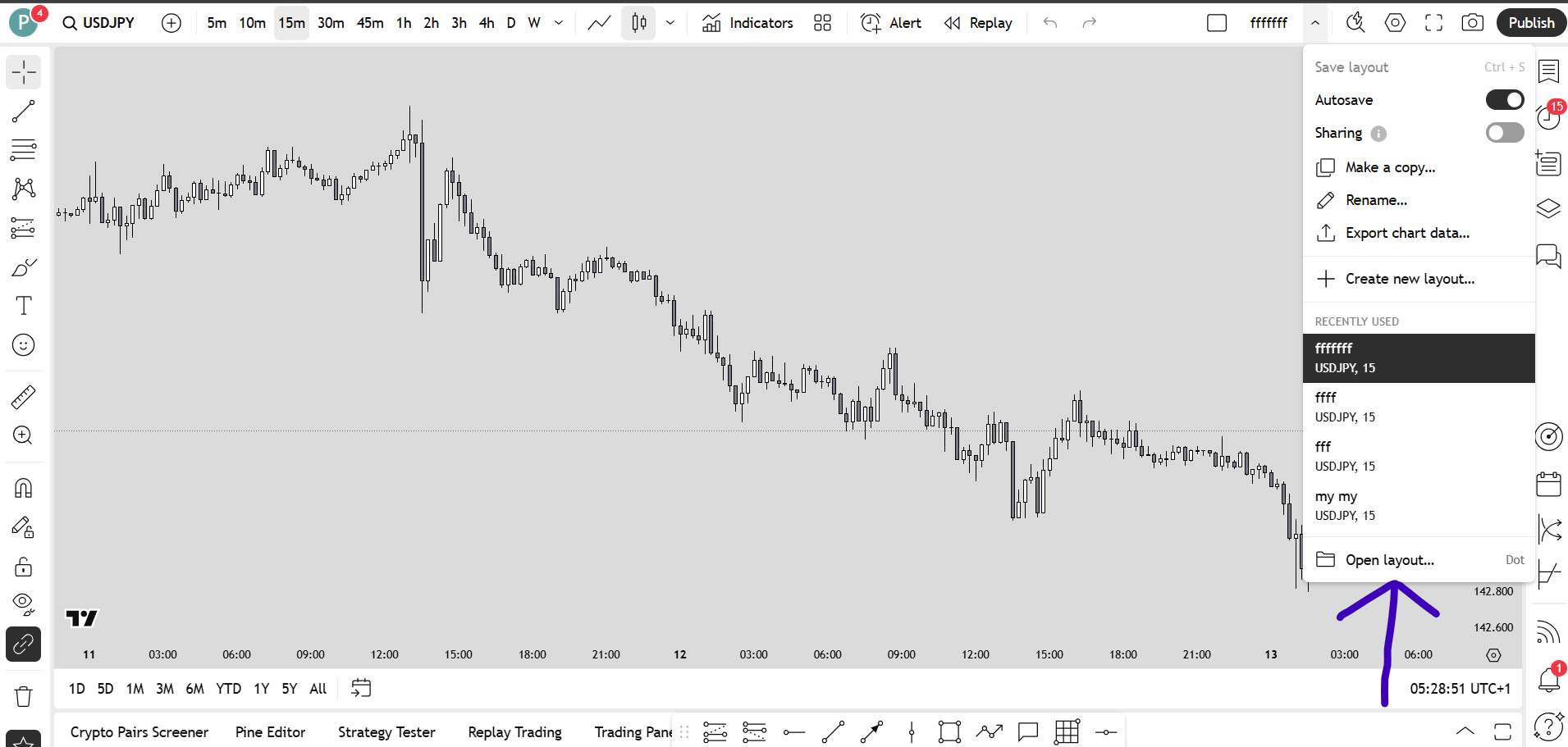
Step 2:Click the "Manage Layouts" button: A dropdown menu will appear showing your recently used layouts and an option to "Open layout."
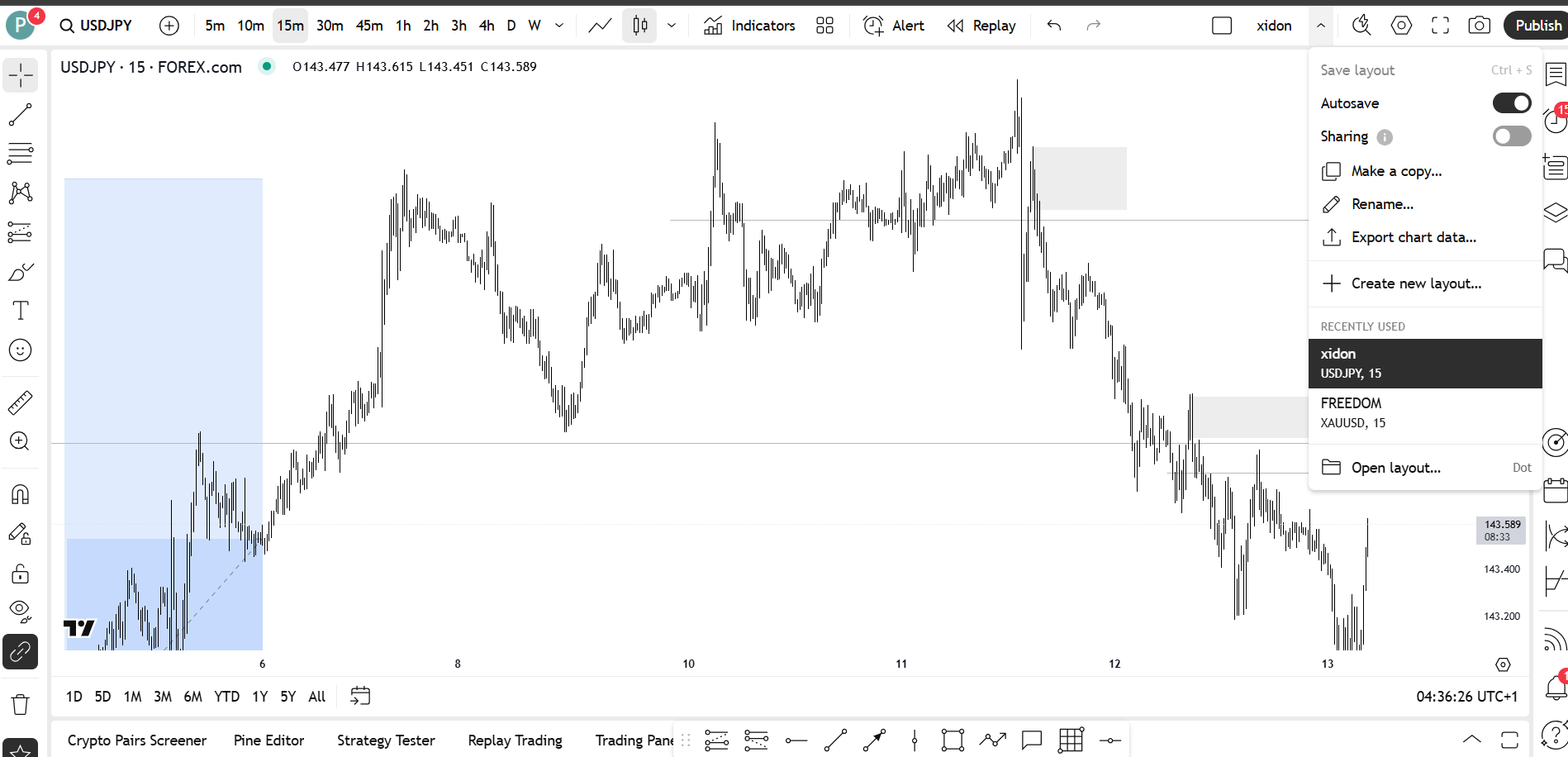
Step 3:To load a recently used layout: Simply click on the name of the layout in the "Recently used" list.
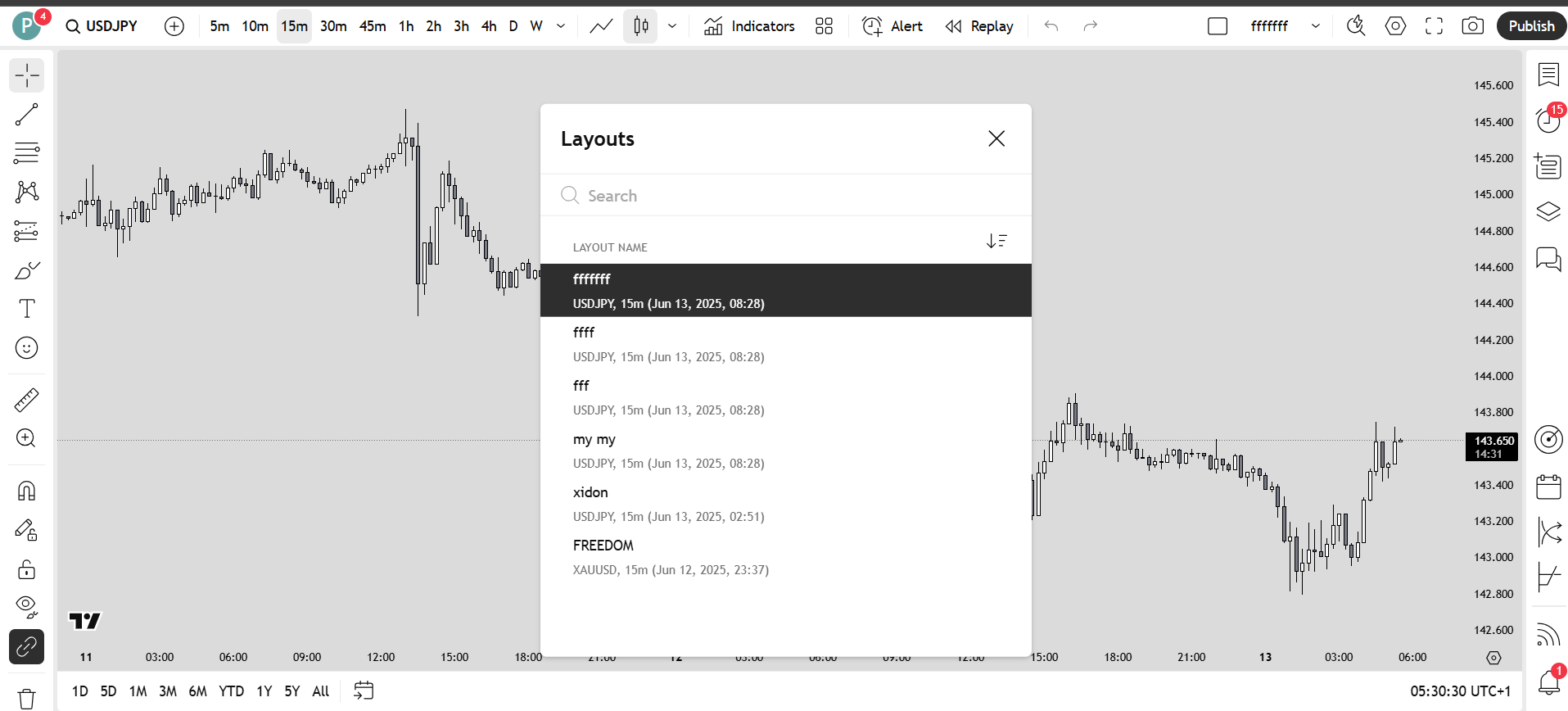
Step 4:To open a saved layout not in "Recently used": Click "Open layout". A new window will appear listing all your saved layouts. Click on the one you want to load.
Key Tips for Layout Management on TradingView:
- Autosave: TradingView often has an "Autosave" feature (look for a toggle near the layout name). When enabled, your changes are automatically saved, which is very convenient.
- Tabs: TradingView Desktop supports multiple tabs. You can have different layouts open in different tabs, allowing for quick switching between entirely different trading setups.
- Default Layout: You can save a specific layout as your default, so it automatically loads every time you open TradingView.


